Custom Keyboard Layout for Ferris Sweep
Among the solutions I have considered to improve my office comfort was investing in an ergonomic keyboard, mainly for the adjustable wrist position. Although I would later learn that split/ergo keyboards do not solve every posture- and habits-related issues causing wrist pain and shoulder soreness, I ended up being tempted. However, when searching for a relevant keyboard model, I could not wrap my head around the differences between one or another, let alone why one would want one size or another (60%, 40%, full-size?). Moreover, the price of such devices ranges from about 100 to several hundred dollars. Considering how lost I was, I listed a few criteria to help me choose the right keyboard for me.
My needs
My use cases cover normal text typing in French and English, as well as programming/command-line navigation on Linux. Here are the mandatory features:
- Less movement than on a regular 104-key standard
- A more modern key placement (i.e. not row-staggered)
- A light, portable, low-profile model
- Wired (no need to charge batteries)
- Quiet key switches so I can use it in a classroom or open space
- Split design to adjust my hand position at will
- Some sort of fun (i.e. customization)
- Not breaking the bank (< $150)
Introducing Ferris Sweep
After a lot of research and a few steps down the DIY keyboard rabbit hole,
I have learnt about a few clever designs relying on a limited amount of keys
to achieve the same functionality as with a regular ISO/ANSI layout,
albeit being far cheaper than most mechanical keyboards.
Among the more popular options are the Chocofi, Corne,
and Ferris series.
I opted for the latter, for I thought (and still think to this day),
that 34 keys is more than sufficient for a complete layout with all the features
one might want from a regular standard.
More specifically, I preferred the Ferris Sweep model, for I wanted to have the
ability to replace microcontrollers in the event of mishaps.
Building the keyboard was easy and fun, but the most difficult part was coming
up with a relevant configuration/layout.
Configuring the keyboard
Note
I might split this page into chapters later on, given how broad the topic of configuration can be.
First, one might want to choose a keyboard firmware that matches their needs. In my case, I was hesitating between ZMK and QMK, but I ended up settling on QMK, for ZMK did not support wired split keyboards when I started building. Configuring such a firmware takes a lot of time, trial and error, but I had a lot of fun doing and learning it. The documentation available online for both firmwares contains a wonderful amount of explanations and details on all the features, so it is a must-read.
Required features for me
- All
atozletters +,,.,/, and' - All symbols that ColemakDH/QWERTY provides
- Arrow keys
- Modifiers (Shift, Ctrl, etc.)
- Accents for French typing
- Special keys like space, return, backspace, escape and tab
- A numpad
Letters and basic punctuation
As a first obvious feature, one wants to have the full set of letters required
by their language.
In my case, I want my base layout to be ColemakDH, and given I have 34 keys,
I can fit at least all letters from a to z, and include four symbols,
which I borrowed from the actual ColemakDH/QWERTY layout ,, ., /.
Naturally, these translate to A to Z and <, >, ? when capitalized.
The last symbol one would usually include in that layer is a semicolon, but I do not use it as often as the single/double quote key, so I swapped the two. Below is a diagram representing my base layer, with letters and a few oddities which will be discussed in the next section.
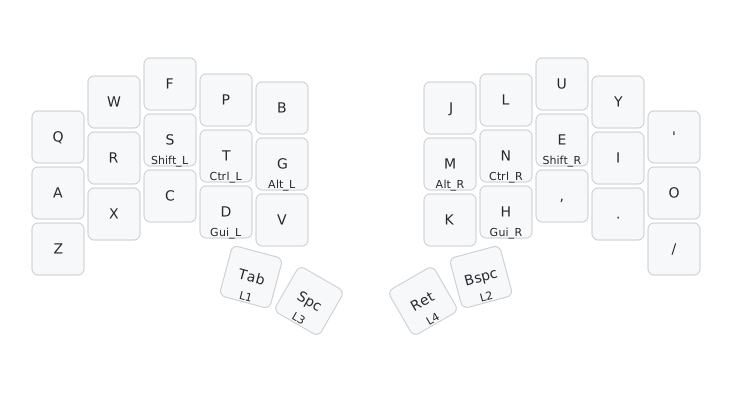
Layer 0 - Letters and basic symbols
Modifiers and special keys
So far, only 30 of the 34 keys have been documented. The four remaining
thumb keys are used for text editing when tapped,
respectively from left to right,
Tab, Space, Return, and Backspace.
Although spamming the backspace key with a thumb is impractical, if not painful,
it can easily be combined with left control to erase words in one go
(or Ctrl + W in terminal emulators and shells).
When held down, these keys allow the user to switch to another layer for easy
access, as shown below in each layer’s section (held key in red).
For the escape key, I have chosen to allocate a combo on W + F, as shown
in the Combos for Accents paragraph.
Finally, the four modifier keys also have to be placed somewhere, and for this
I decided to use the home row mods feature,
which corresponds to the hinted keys on, for example, R, S, and T
in the previous section.
By using this feature, a normal tap on the corresponding keys outputs a
character, but a long press or hold outputs a modifier key.
This means that, to output the capital letter A,
I can hold E for Shift_L and press A at the same time.
Similarly for Ctrl + L shortcut in the browser, I hold my left index on T
for Ctrl_L and press L with my right index.
Careful with the position of home row mods!
The current and documented position of the modifier keys differ a little from the usual home row mods, because the ColemakDH often causes involuntary mod actions if I do a finger roll.
Symbols
Thus far, the configuration contains too few symbols to be useful,
especially for programming and command-line navigation.
We are now going to discuss something that blew my mind when I first learnt
about it: keymap layers.
Basically, when using regular keyboards, shifted and alternate symbols are
considered part of different layers. Modern DIY keyboard firmwares implement
a similar functionality, but allow for many more layers to be added, as long as
one has enough keys to press, or finds a workaround, like a layer of layers.
For example, here is my symbol layer below, which I activate by holding the
thumb key for Backspace (light red on the diagram) down.
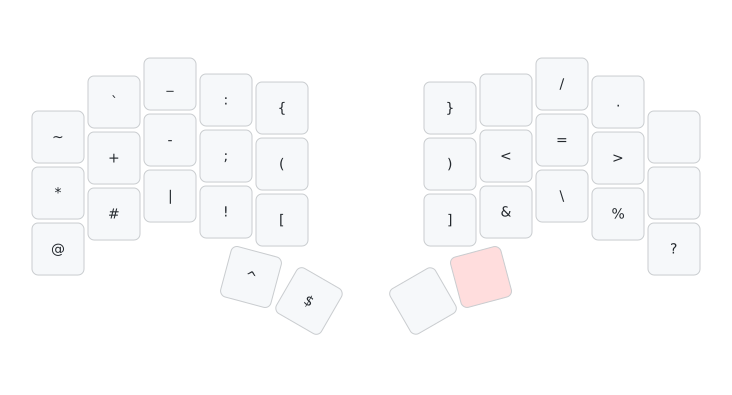
Layer 2 - Symbols
The position of each symbol has been thoroughly chosen based on how the action
of pressing them down felt, for maximum typing comfort.
N.B. I especially like the placement of ! and $, which I often type
together to call the last argument of the last typed command in Bash and Zsh.
Numpad and Media Keys
Similarly to symbols, I type numbers from a dedicated layer, activated by
holding the Return key down with my right thumb.
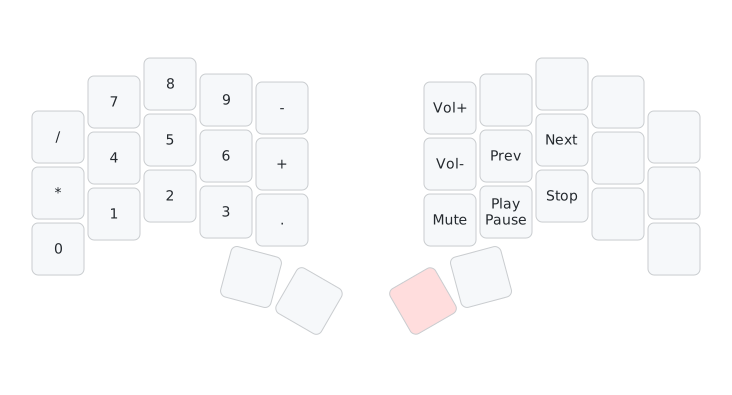
Layer 4 - Numpad and Media Control layer
Movement keys and mouse
For movement keys, I hold the left thumb on the Tab key.
Note that the arrows are not placed in the way one could expect from a regular
keyboard perspective, as I am used to using vim and its navigation bindings.
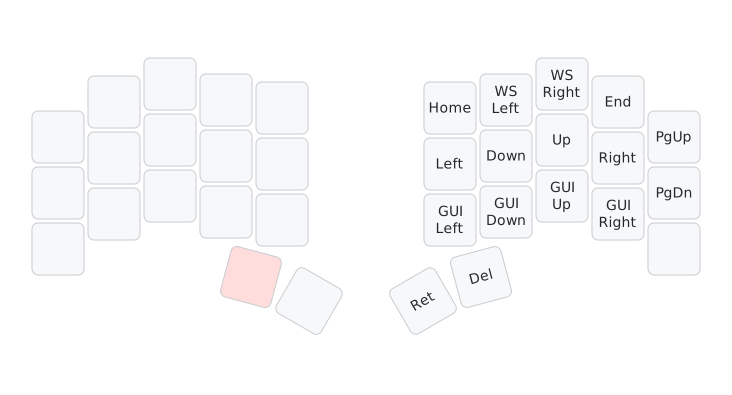
Layer 1 - Movement keys
In the same way, I have a layer for the mouse and function keys, activated with
Space.
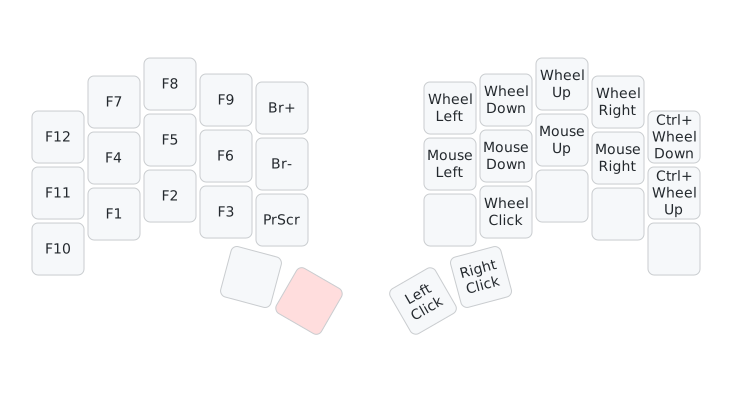
Layer 3 - Mouse and Function keys
Combos for Accents
Last, but not least, I need a mechanism to type accents. To achieve this, I have settled with combos for dead accents (Linux only, so far). This way, I type a two-key combo, followed (usually) by a vowel key, which activates a dead key for the corresponding diacritic.
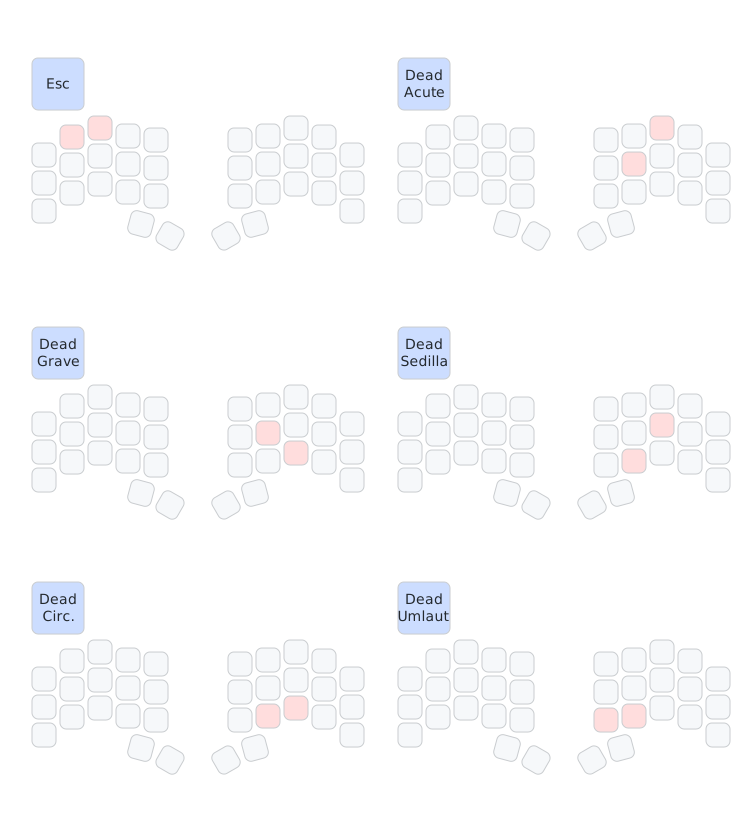
Combos to print accent dead keys
Tips on keeping costs to a minimum
Here are a few tips that help keep the cost of parts a minimum:
- Use blank keycaps if you can touch-type
- Build PCBs in batches of 5 for friends and split the cost, or order a single PCB from a supplier (which I did)
- Though not suited for everyone’s need, preferring wired over wireless drives the cost down
- 3D-print your own case, tenting kits, and accessories
Caveats with my configuration
For now, my configuration has a few issues making it imperfect, even for my taste:
- I have had to move the home row mods around to avoid misclicks when typing,
for example, ‘attention’ a little too fast (
i,o,nare on the home row in ColemakDH). - For the same reason, I have had to move combos around
- Typing passwords while having multiple pages to go through can be tricky, especially for passwords with many symbols.
- Typing full-caps text is a little tricky with my current setup, even with caps-word, but I plan to address the issue by adding a caps lock one way or another.
As far as the keyboard itself is concerned, I have damaged the USB-C port on one of my microcontrollers (Sea Picro RP2040) as I manually plug and unplug it often. As a result, I have had to purchase additional boards, while I could have replaced the component, had my PCB had an SMD-oriented design. I would also like to come up with a tenting solution that works for me without costing too much, but I am thinking about documenting it in a later article.